

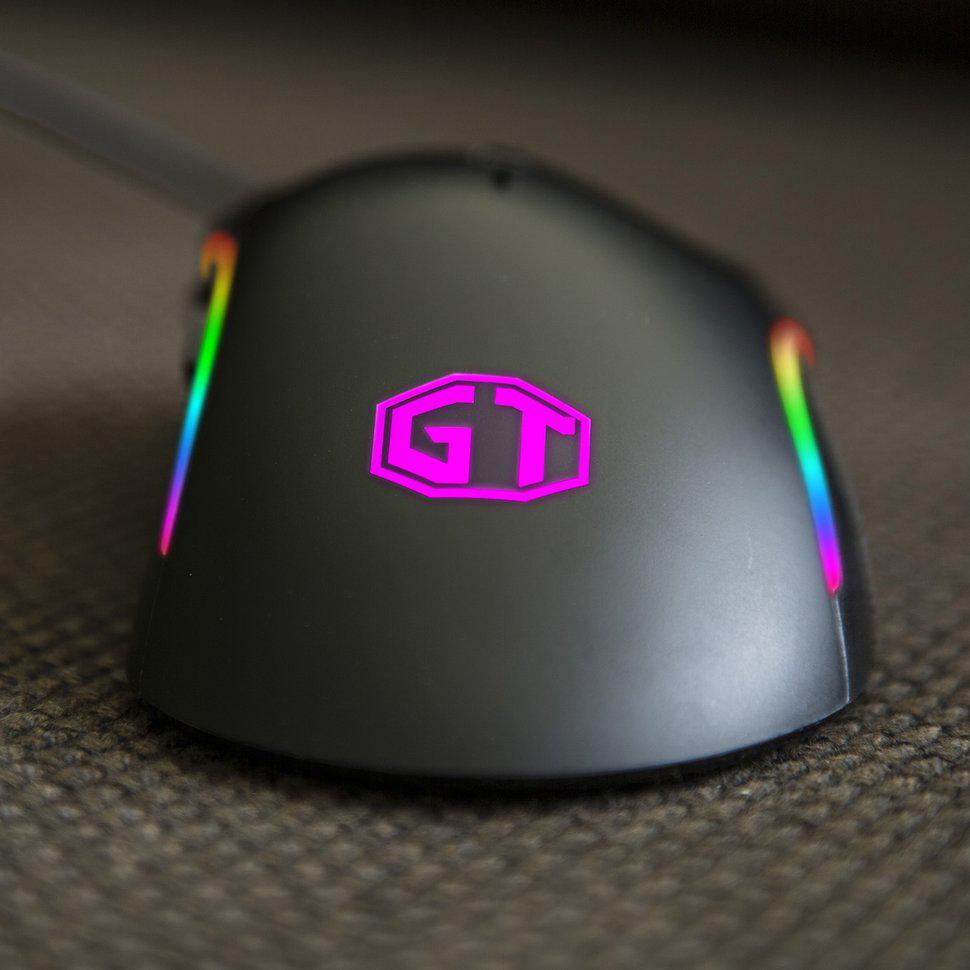
RGB peripherals have become a staple in gaming and professional PC setups. Among them, an rgb mouse can elevate your workspace by matching the lighting of your keyboard, PC case, and other accessories. Learning how to sync your RGB mouse with your PC setup ensures a cohesive and visually appealing experience. This guide will walk you through the steps to achieve perfect synchronization.
Understanding RGB Synchronization
Before diving into syncing, it’s important to understand what RGB synchronization entails. Many PC accessories now come with customizable lighting that can be controlled via software. When devices are synchronized, they share the same lighting pattern, color scheme, and effects. This provides a seamless aesthetic across your entire setup.
Step 1: Install the Required Software
Most RGB mice come with dedicated software from the manufacturer. Examples include:
- Razer Synapse for Razer devices
- Corsair iCUE for Corsair peripherals
- Logitech G HUB for Logitech products
Install the software that corresponds to your RGB mouse. These programs allow you to control colors, lighting effects, and sync settings across multiple devices.
Step 2: Connect and Detect Your Mouse
Plug your RGB mouse into your PC via USB. Open the installed software and ensure that your mouse is detected. Most software will display a connected devices list. If your mouse doesn’t appear, try reconnecting or updating the software.
Step 3: Choose Your Syncing Mode
Within the software, you’ll typically find options to sync your RGB mouse with other devices. Common syncing modes include:
- Unified Sync: Matches all connected devices to one color and pattern.
- Game Mode Sync: Lights react to in-game events.
- Custom Profiles: Create personalized lighting schemes for your setup.
By selecting a syncing mode, your mouse will automatically align with the lighting of your PC or other peripherals.
Step 4: Fine-Tune Colors and Effects
Once syncing is enabled, you can adjust brightness, colors, and effects. Experiment with static colors, breathing effects, or rainbow patterns until your setup looks exactly how you want.
Troubleshooting Common Issues
Sometimes, RGB synchronization may not work as expected. Common solutions include:
- Updating your RGB software
- Reconnecting devices
- Ensuring all peripherals support the same syncing standard
- Restarting your PC to refresh device detection
Conclusion
Learning how to sync your RGB mouse with your PC setup is straightforward with the right software and steps. Once configured, your setup will not only look cohesive but also enhance your gaming or work experience. Remember to explore different profiles and syncing modes to fully personalize your RGB experience.
